SignalSight Conversion Lead streams contact-stage updates from Freshsales CRM to Meta in real time. When a lead moves through your pipeline — qualified, junk, won, or lost — those events flow back to Meta so campaigns optimize toward meaningful outcomes instead of raw form submissions.
Before you start
You need a Freshsales account, a SignalSight account, and a Meta CRM Pixel set up in Events Manager. For Pixel ID and access token steps, see Meta (Facebook) CAPI Setup. New users can start with Account Creation.
Get Started
Your Freshsales account should have up-to-date contact data from the last 7 days before you begin. SignalSight reads contact stage changes from Freshsales — if contacts haven't moved through your pipeline recently, there won't be events to send during setup.
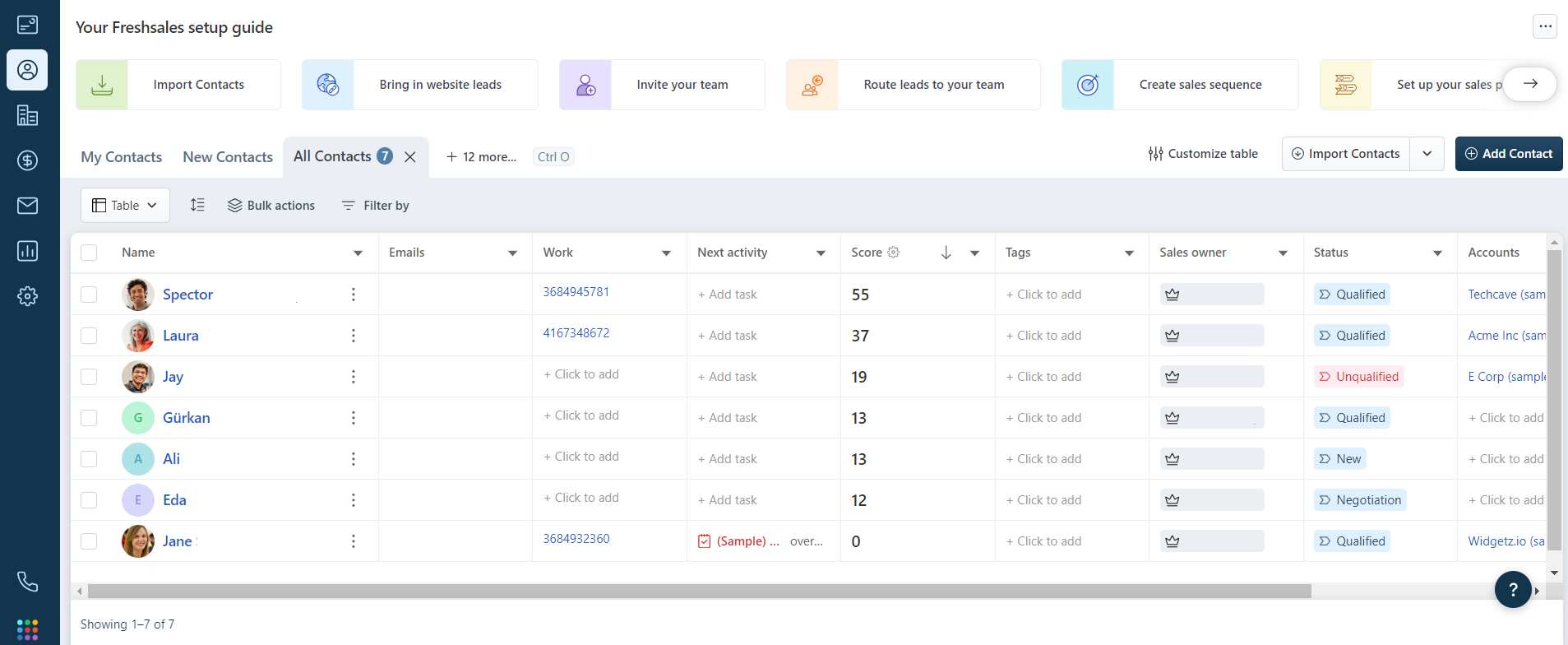
Open the Tracker Creation Wizard under Signal in the left menu and follow the steps below.
Create a Tracker
Step 1 — Freshsales Source
- Select Freshsales CRM from the source list and give the source a name.
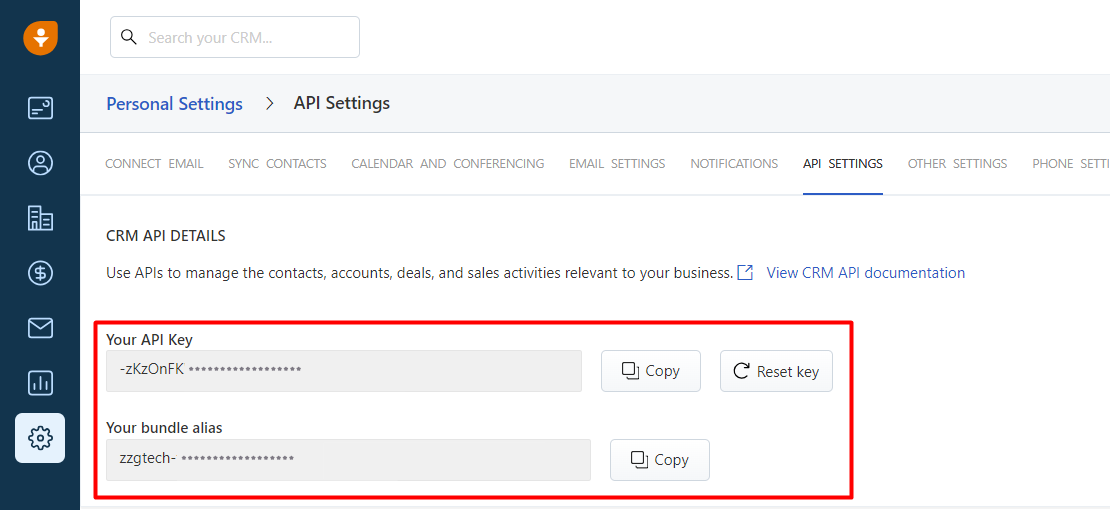
- Enter your API Key and Bundle Alias (see How to Get API Key and Bundle Alias below if you need help).
- Click Connect to complete the connection.
After a successful connection, configure the Event Name Prefix and field mappings. With CRMContacts as the prefix, a Qualified stage becomes CRMContacts-Qualified and a Junk stage becomes CRMContacts-Junk. You can leave the prefix blank or enter a custom value.
Click Save and Next to continue to destination setup.
How to Get API Key and Bundle Alias
In your Freshsales dashboard, navigate to the following sections in order:
- Admin Settings
- Website Tracking and APIs
- API Settings
- API Authentication
Complete the reCAPTCHA step under API Authentication to reveal your API Key and Bundle Alias. Copy both values into the SignalSight source configuration.
Step 2 — Meta CAPI Destination
Create a Meta Conversions API destination. Enter your CRM Pixel ID and access token manually, or use Connect Facebook CAPI to sign in and select the Pixel from your account.
Note
The Pixel must be a CRM Pixel — not your website Pixel. In Events Manager, click Connect Data Sources, select CRM, then Connect. Create a new dedicated Pixel (recommended) so CRM events stay separate from your web Pixel.
Step 3 — Name and Complete
Name your tracker, review the selected source and destination summary, and click Complete to finish the wizard.
Manage Your Source
Open your tracker at any time to update field mapping or review sent event history. Use Edit Mapping on the Freshsales source to adjust field mappings and the CRMContacts event name prefix that precedes your event names.
What Happens Next
Once CRM events start flowing, complete the funnel setup in Meta Events Manager. The three guides below cover everything after tracker creation:
- Validation Phase — Meta's 7-day validation window and how to resolve errors.
- Define Your Sales Funnel — map CRM events to funnel stages and set your optimization target.
- Run Conversion Leads Campaigns — campaign objective, ad set, and Conversion Leads optimization settings.
Frequently Asked Questions
Where do I find my API Key and Bundle Alias?
In Freshsales, go to Admin Settings → Website Tracking and APIs → API Settings → API Authentication. Complete the reCAPTCHA step to reveal both values.
What is the Event Name Prefix?
It prepends a label to every event sent to Meta. With the CRMContacts prefix, a Qualified stage becomes CRMContacts-Qualified. You can customize or clear the prefix during source setup or later via Edit Mapping.
Why does Freshsales need recent contact data before setup?
SignalSight sends events when contact stages change in Freshsales. If your CRM has no recent activity, there are no events to validate during Meta's integration review.