OpenAI Ads Conversions API sends your website events to OpenAI Ads Manager so campaigns can measure and optimize on real actions. SignalSight uses the same tracker model as Meta CAPI: a website source, an OpenAI destination, and event mapping between your internal events and OpenAI conversions.
Before you start
You need a SignalSight account and an OpenAI Ads account. If you haven't signed up yet, follow Account Creation first.
Credentials You Need
The OpenAI Ads Conversions API destination asks for three values from OpenAI Ads Manager. Copy each one before you create the destination.
- Pixel ID — In Ads Manager, open Tools → Conversions → Data sources. Create a web data source if you don't have one. The Pixel ID appears under the source name. The same ID is used for the browser pixel and the Conversions API.
- Conversions Key — Still under Tools → Conversions, open Conversion keys and choose Create new key. This key is only for sending events. Copy it when it is created — Ads Manager shows the full value once.
- Ads Management Key — Open Settings → General → API Keys and create a new key. This is the Advertiser API key OpenAI uses to manage pixels and conversion settings. Keep it on the server; paste it only into the SignalSight destination.
OpenAI documents the same split in Conversion Tracking: the Ads Management key handles account setup, and the Conversions key authenticates event delivery.
OpenAI Ads Tracker Creation
Open the Tracker Creation Wizard under Signal in the left menu (or go to Trackers → Create Tracker).
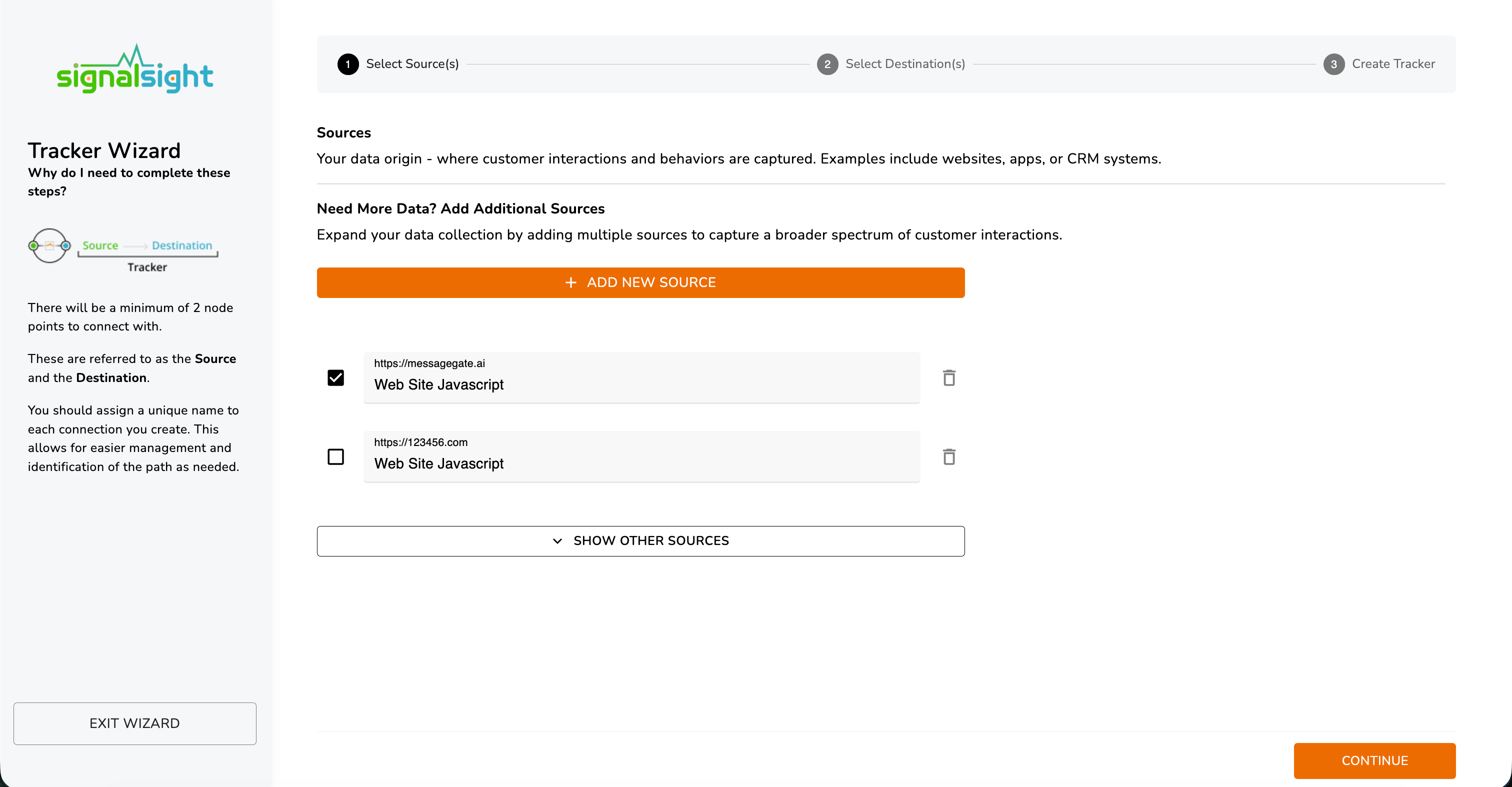
Step 1 — Website Source
Select Website Javascript as the source. This is the source used for on-site conversion tracking. Enter the site domain, then continue.
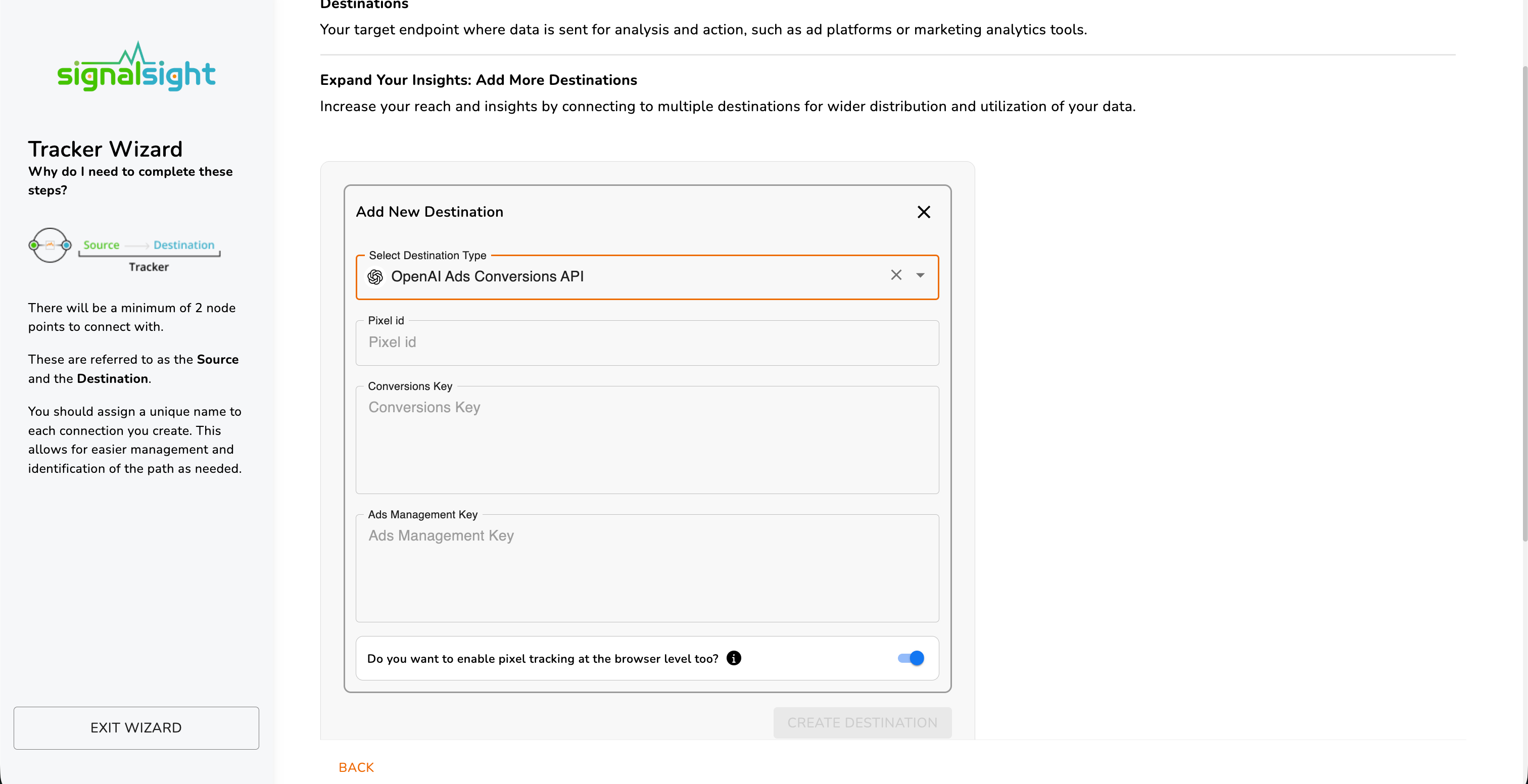
Step 2 — OpenAI Ads Destination
Choose OpenAI Ads Conversions API as the destination type. Enter the Pixel ID, Conversions Key, and Ads Management Key from the previous section.
Leave Do you want to enable pixel tracking at the browser level too? turned on when you want browser and server measurement together. SignalSight then creates two destinations — OpenAI Ads Conversions API and OpenAI Ads Pixel — so the same events can be deduplicated across both paths.
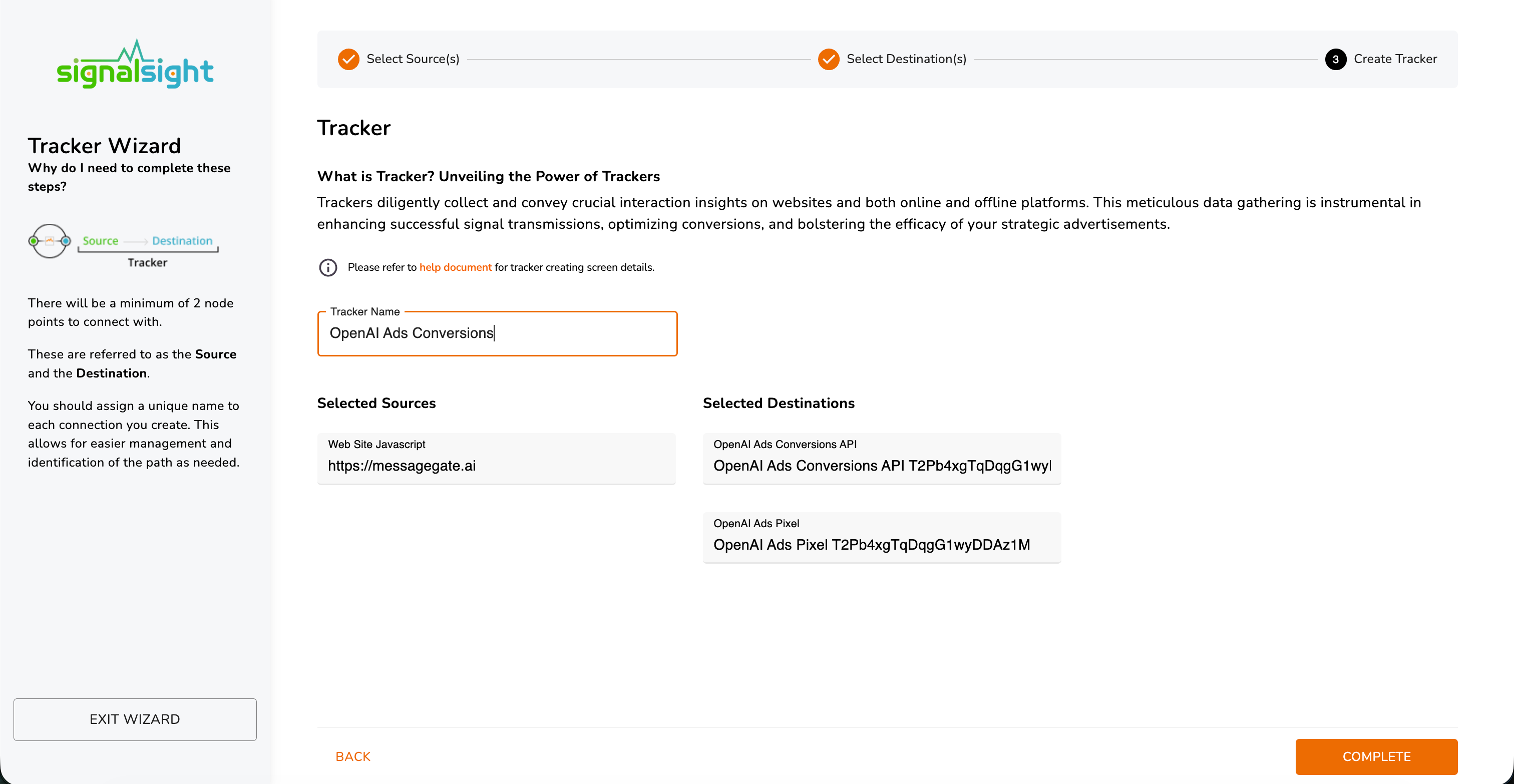
Step 3 — Name and Complete
Name the tracker and review the selected source and destinations. Click Complete to finish.
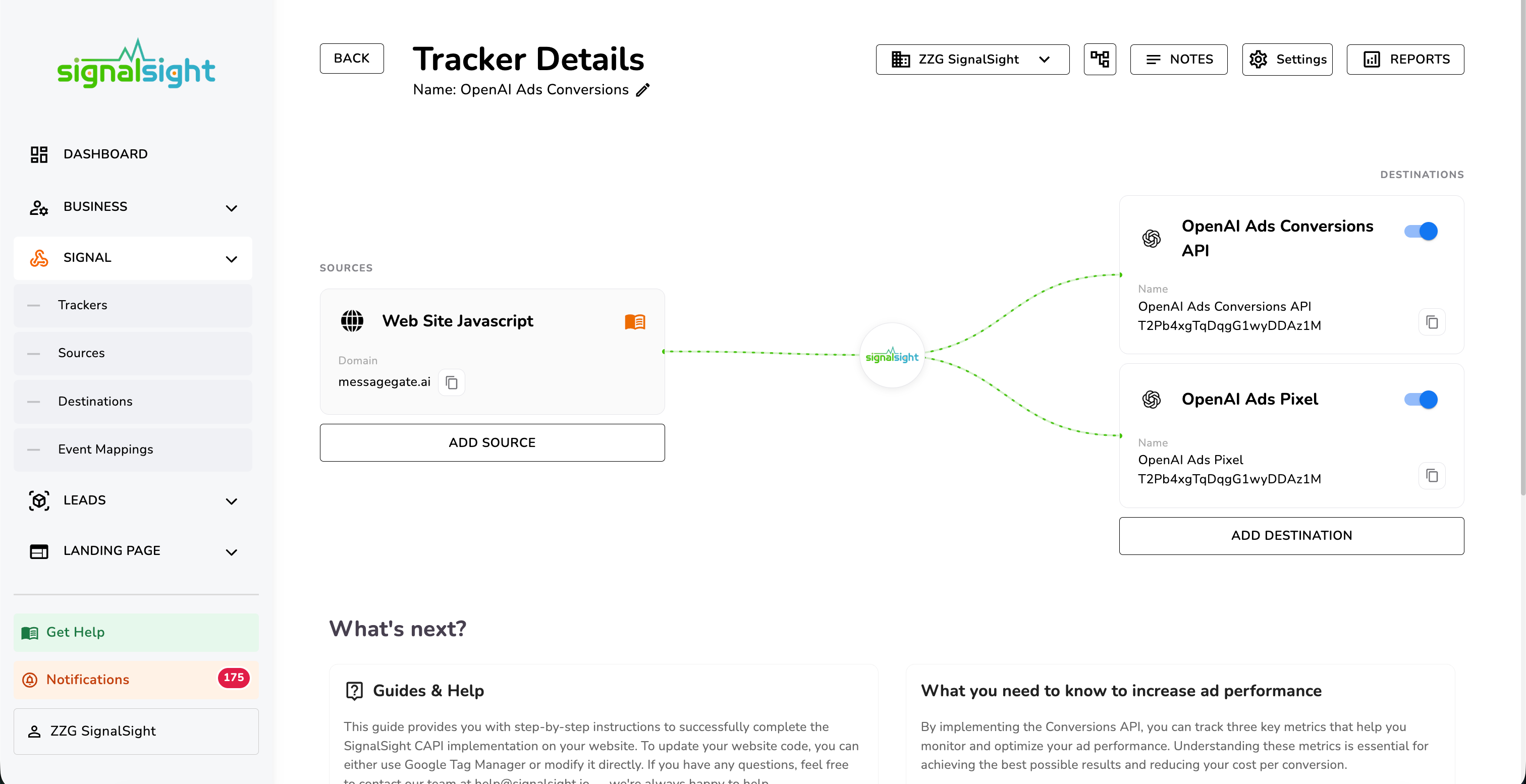
The tracker detail page opens next. From here you can add or remove sources and destinations, or follow the installation guide under What's next?.
Event Mapping
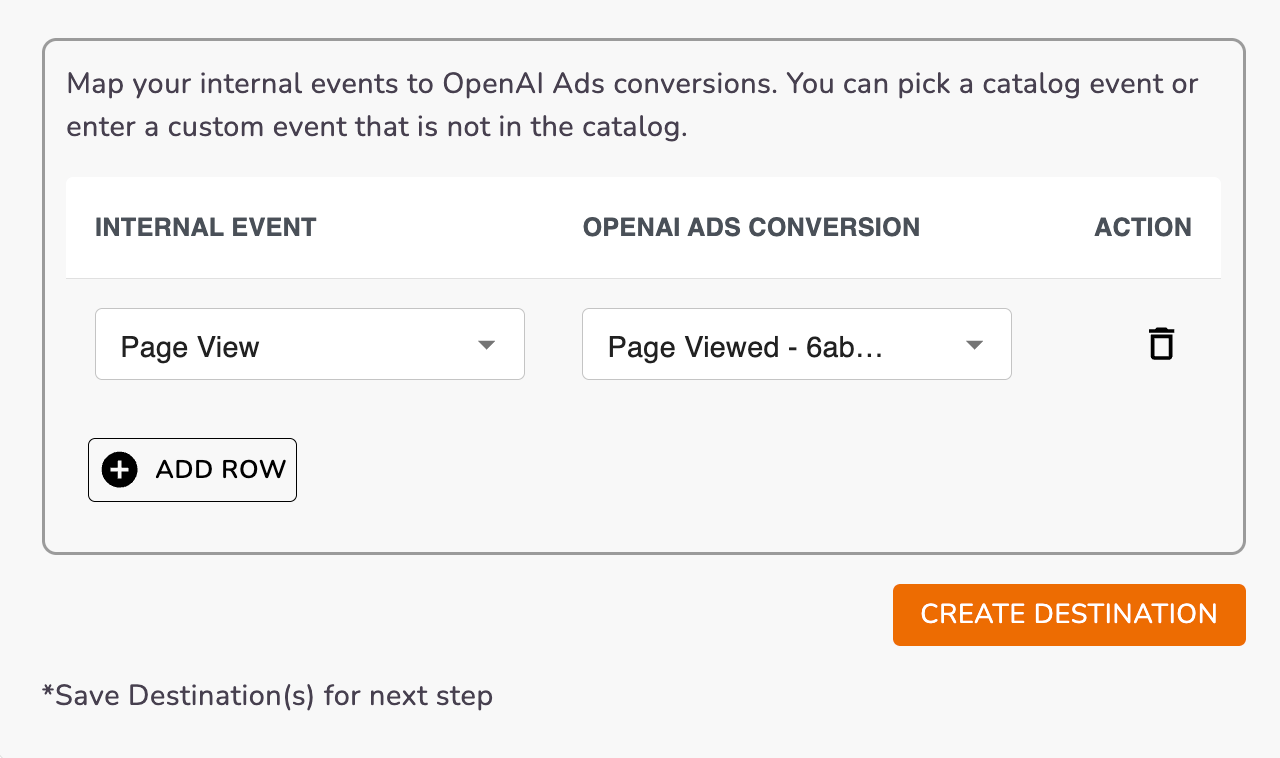
SignalSight maps a set of standard events to OpenAI Ads conversions automatically, so common actions are ready without a manual row for each one.
You can add mappings of your own. Each row pairs an Internal Event with an OpenAI Ads Conversion. Pick a catalog event, or enter a custom event that is not in the catalog, then save the destination.
One Installation, Every Ad Platform
After the SignalSight CAPI snippet is on your site, OpenAI is one destination among many. The same p2sq.push() events can also go to Meta, TikTok, Pinterest, Snapchat, and other connected platforms — add those destinations to the tracker instead of installing a separate tag for each network.
Loader snippet, PageView, and the standard event calls are in Basic CAPI Installation.
Frequently Asked Questions
Does SignalSight map OpenAI events for me?
Yes. Standard events are mapped automatically. You can still add rows to map an internal event to a catalog conversion, or to a custom event that is not in the catalog.
What is the difference between the Conversions Key and the Ads Management Key?
The Conversions Key sends events. The Ads Management Key is the Advertiser API key used to manage pixels and conversion settings. Both are entered on the OpenAI Ads Conversions API destination.
Can the same site code send events to OpenAI and other ad platforms?
Yes. One SignalSight installation fires your events. Add Meta, TikTok, Pinterest, Snapchat, or other destinations on the same tracker to forward those events without a new code base.