SignalSight Conversion Lead lets you use SFTP (Secure FTP) as a lead data source. Connect to your server over an encrypted channel, point SignalSight at a lead file or directory, and funnel events flow back to Meta — without a live CRM integration.
Before you start
You need SFTP server credentials, a SignalSight account, and a Meta CRM Pixel set up in Events Manager. For Pixel ID and access token steps, see Meta (Facebook) CAPI Setup. New users can start with Account Creation.
Get Started
Conversion Leads closes the loop between Meta lead ads and your downstream funnel data. SFTP suits teams that export lead files to a secure server on a schedule — SignalSight polls the file and sends events to Meta automatically.
Open the Tracker Creation Wizard under Signal → Trackers and click Create Tracker.
Create a Tracker
Step 1 — SFTP Source
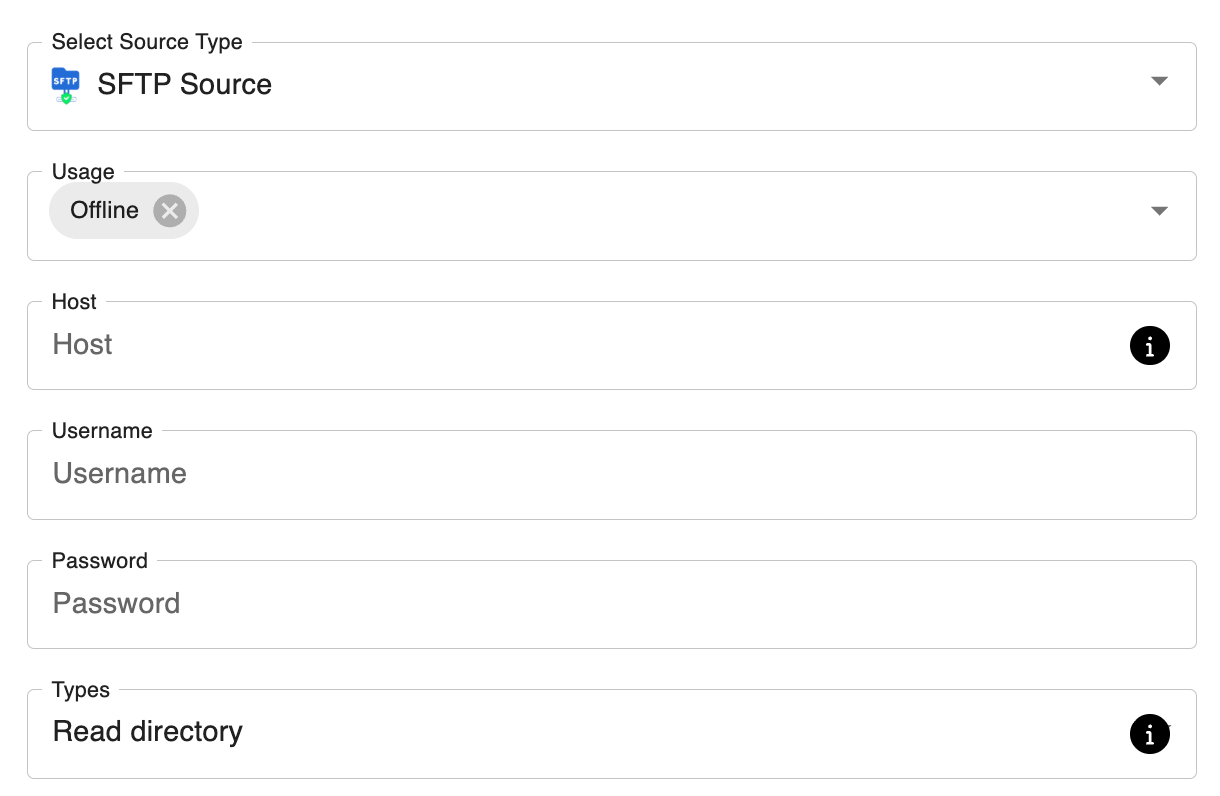
- Click Add Source and select SFTP (Secure FTP) as the source type.
- Enter your connection details: host, username, password, and the file path (file or directory to read).
- Click Connect to verify the connection.
- Select the file name to process and set the file checking period — how often SignalSight polls for updates.
- Click Save, then Next to continue.
Map the fields in your file to the required lead attributes — including leadgen ID — so Meta can match rows to the leads it generated.
Step 2 — Meta CAPI Destination
Create a Meta Conversions API destination. Enter your CRM Pixel ID and access token manually, or use Connect Facebook CAPI to sign in and select the Pixel from your account.
Note
The Pixel must be a CRM Pixel — not your website Pixel. In Events Manager, click Connect Data Sources, select CRM, then Connect. Create a new dedicated Pixel (recommended) so CRM events stay separate from your web Pixel.
Step 3 — Name and Complete
Name your tracker, review the source and destination summary, and click Complete to finish the wizard.
Manage Your Source
Open your tracker at any time to update the file path, adjust the checking period, change field mapping, or review sent event history. Keep the file on your SFTP server updated with current lead statuses — SignalSight picks up changes on the next poll.
Note
Changing mapping on campaigns that have already finished learning may restart Meta's learning phase. Update mappings carefully once ads are live.
What Happens Next
Once events start flowing from your SFTP file, complete the funnel setup in Meta Events Manager. The three guides below cover everything after tracker creation:
- Validation Phase — Meta's 7-day validation window and how to resolve errors.
- Define Your Sales Funnel — map events to funnel stages and set your optimization target.
- Run Conversion Leads Campaigns — campaign objective, ad set, and Conversion Leads optimization settings.
Frequently Asked Questions
What is the difference between SFTP and FTP?
SFTP transfers data over an encrypted SSH connection — recommended when lead data includes PII. Standard FTP sends credentials and file contents in plain text. Use SFTP when your infrastructure supports it.
What is the file checking period?
It controls how often SignalSight polls your SFTP server for file changes. Set it to match how frequently your system updates the lead export — for example, every hour or once daily.
Can I point SFTP at a directory instead of a single file?
Yes. Configure the path to a directory during source setup, then select the specific file name SignalSight should process from that location.
When should I use SFTP instead of File Upload?
Use SFTP when your backend already writes lead files to a secure server automatically. File Upload is better for one-off or manual batch uploads through the SignalSight dashboard.